The $9 bet that every creator doing screen-recorded content should understand
If you publish tutorials, walkthroughs, product demos, or any “let me show you how this works” video, you already know the dirty secret of the genre: the recording is the easy part. The zoom-and-pan choreography that makes a screen recording watchable is where the hours vanish. I’ve spent entire afternoons in editors like CapCut and Descript placing keyframes over every click, and I’ve watched teammates do the same. So when a maker launches a tool that claims to automate that specific step — cursor-aware auto-zoom, local rendering, a one-time price instead of a subscription — it’s worth pulling apart, because it sits at the intersection of two things creators care about right now: production speed and software that doesn’t rent itself to you forever. That’s the lens I’m using for Lumiko, which launched on Product Hunt this week.
What problem Lumiko actually solves (and what it doesn’t)
The maker, Ashish Patnaik, is refreshingly blunt about the origin story: he “kept losing an hour to keyframes after every five-minute recording.” That ratio — roughly 12 minutes of editing per minute of footage, just for camera movement — matches what I’ve seen in my own tutorial workflows. The zoom-and-pan you see in polished tutorial videos usually comes from someone manually placing markers over every click, and that’s the exact labor Lumiko targets.
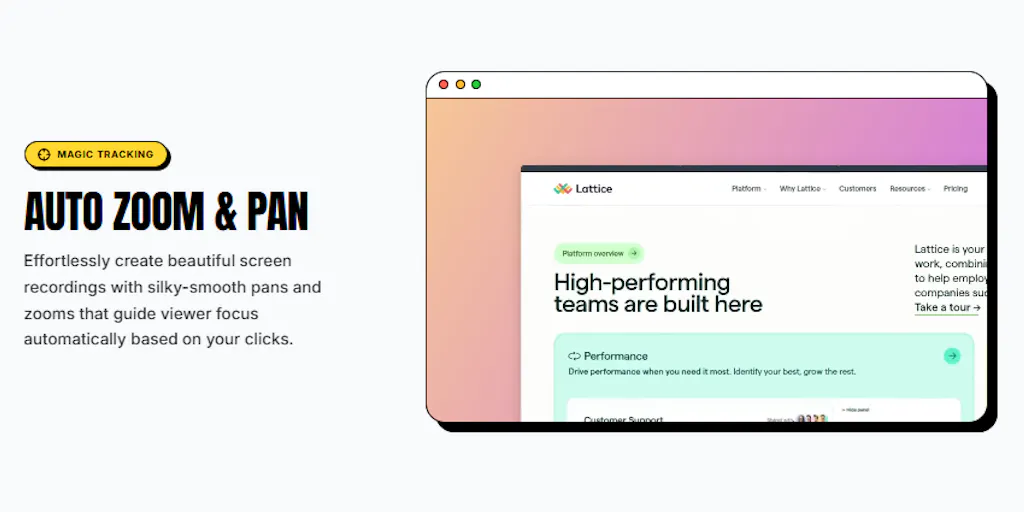
Here’s how it works, per the maker’s own description: Lumiko watches where your cursor goes while you record, then generates zoom and pan movement automatically once you stop. You still get a full timeline editor for trimming and reordering clips. There’s also a “Smart Blur” feature for hiding sensitive info like API keys before you share anything. And critically: everything renders on your machine. No account, no upload step, no waiting on a server queue.
That last part matters more than it sounds. If you’ve ever uploaded a client demo to a cloud-based editor and then wondered where that footage lives, you understand why local rendering is a trust feature, not just a speed feature. For agencies handling unreleased product UI or founders recording investor demos, “the file never leaves my laptop” is a genuine selling point.
What Lumiko is not, based on the source: it’s not a full video editor, not a repurposing engine, not a captioning tool, and not a scheduling or publishing layer. It’s a screen-recording capture-and-zoom utility. If you were hoping for an all-in-one, this isn’t it — and I’d argue that’s fine.
The pricing is the actual story
Pro is $9, one time, no subscription. It removes the watermark, unlocks 4K exports, and covers 3 devices for life. The free tier exists and includes the Chrome extension; the maker confirmed in the comments that installing the free extension is the right first step, and that a license key simply unlocks Pro features inside the extension you already have.
Let me put that in context. Most tools in the adjacent space — Loom, Screen Studio, Tella — run on recurring subscriptions, often per-seat. I’m not knocking that model; cloud hosting, transcription, and team collaboration cost real money to run. But a one-time $9 for a local-rendering utility is a different economic shape entirely, and it’s the kind of pricing that makes a creator actually try a tool instead of adding it to a “maybe later” list. One commenter, Richard Acheampong, put it simply: “A one time $9 bucks isn’t bad for the time and effort it saves.”
How it stacks up against what you’re probably already using
I want to be careful here, because the source doesn’t position Lumiko against named competitors — that’s my framing, not the maker’s claim. But as someone who runs screen-recorded content, here’s the honest comparison map.
Against Screen Studio: Screen Studio is the tool most creators associate with automatic zoom-and-pan, and it’s excellent. It’s also macOS-focused and subscription-priced. Lumiko’s pitch is narrower and cheaper, and it runs as a Chrome extension, which means it’s browser-native rather than OS-native. If your recording happens in a browser — dashboards, SaaS walkthroughs, web apps — that’s a natural fit. If you’re recording native desktop apps or a full OS workflow, a browser extension may not capture what you need. The source doesn’t specify platform support beyond the Chrome extension, so I’d verify that before buying.
Against Loom: Loom’s strength is async sharing and team libraries, not cinematic zoom. Different job entirely. If your bottleneck is “I need to send this to a client in 30 seconds,” Loom wins. If your bottleneck is “this tutorial looks flat and I need it to feel edited,” that’s Lumiko’s lane.
Against CapCut and Descript: These are full editors where you can do zoom-and-pan manually, and Descript in particular has been pushing AI-assisted editing hard. But manual keyframing is exactly the tax Lumiko is trying to remove. The tradeoff: you lose the broader editing, captioning, and repurposing features those suites offer. For a lot of creators, the answer is both — record and auto-zoom in Lumiko, then finish in your main editor.
My take: Lumiko’s real competitor isn’t another zoom tool. It’s the default behavior of “I’ll just do it manually because setting up a new tool takes longer than the edit.” The $9 one-time price is designed to beat that inertia, and I think it probably does.
Why short-form creators should care more than long-form ones
If you’re publishing to TikTok, Instagram Reels, or YouTube Shorts, screen-recorded content is one of the highest-leverage formats you have — “here’s how I did X in this app” clips routinely outperform talking-head content for software and productivity niches. But short-form is unforgiving about visual deadness. A static screen recording with no camera movement loses viewers in the first two seconds, and watch time is the metric the algorithm actually rewards. Auto-zoom isn’t cosmetic in that context; it’s retention infrastructure.
Long-form YouTube tutorial creators benefit too, but the math is different — you have more runway to earn attention, and viewers who clicked a 20-minute tutorial are already motivated. Short-form viewers are not. That’s why I’d bet the highest-ROI user for a tool like this is someone pumping out 30–60 second app demos, not someone making hour-long courses.
What creators and social teams can borrow from this launch
Even if you never install Lumiko, there are operational lessons in this launch thread that apply to how you run your content stack.
Lesson 1: Find the one repetitive step and kill it
The maker didn’t build a video editor. He built a fix for one specific hour-long chore. That’s the right instinct, and it’s the same instinct you should apply to your own workflow. When I audited my own publishing process last quarter, the time sinks weren’t “editing” in the abstract — they were three or four discrete, nameable steps: resizing exports for each platform, writing alt text, and re-typing captions into each scheduler. Naming the step is the prerequisite to automating or outsourcing it. “I spend too long on content” is not actionable. “I spend 40 minutes per video placing zoom keyframes” is.
Lesson 2: Local-first is becoming a differentiator
The “no account, no upload step” framing is doing real work in this launch. Creators are increasingly wary of cloud tools that train on their content, hold their footage hostage behind a subscription, or add a server round-trip to every export. If you’re evaluating tools for your stack — whether that’s Buffer, Metricool, or a niche utility like this — “where does my data go, and what happens if I stop paying?” is a question worth asking before you build a workflow around something.
Lesson 3: One-time pricing is a positioning weapon
I don’t think one-time pricing is always sustainable — server costs are real. But for a local-rendering desktop or browser tool, the marginal cost per user is near zero, which makes it viable. If you’re a creator selling your own digital products, this is a reminder that pricing model is positioning. A $9 one-time purchase says “this is a tool, not a relationship.” A $9/month subscription says “this is infrastructure.” Both are legitimate; they attract different buyers.
Lesson 4: The maker’s comment-section behavior is a masterclass
Look at how the maker handled the support questions. Sorin Maxim reported a real problem — bought Pro, couldn’t find where to paste the license key. The maker responded with a numbered, step-by-step activation walkthrough, complete with the license key format. No defensiveness, no “check the docs.” Then Justin Rockmore raised a legitimate product critique — cursor position is “right most of the time and wrong on the takes where I’m moving the mouse while I talk” — and asked if zooms could be overridden. The maker confirmed yes, and gave exact steps: click the blue Zoom block on the timeline, change Position from “Follow cursor” to “Fixed,” drag the target box where you want it, and adjust or delete the block entirely.
That’s how you handle a launch. The critique was specific and fair, the answer was specific and actionable, and the exchange is now permanent public documentation that helps every future user. If you’re launching anything — a product, a course, a newsletter — study this pattern. Answer the complaint, don’t manage it.
Where my judgment says this falls short
I want to be balanced, because launch-day enthusiasm has a way of curdling once you actually use a tool for a month.
The cursor-tracking edge case is real and probably common. Justin Rockmore’s report — cursor position wrong “on the takes where I’m moving the mouse while I talk” — describes a huge share of how real tutorials get recorded. People gesture, they move the cursor to emphasize a point, they circle things while narrating. If the auto-zoom follows the cursor literally in those moments, you’ll get zooms that drift to nowhere. The manual override exists, which is the right escape hatch, but if you’re overriding more than a third of the auto-placed zooms, you’ve lost the time savings that justified the tool. I’d want to test this specifically before committing a whole workflow to it.
Chrome extension means browser-bound. The source only describes a Chrome extension. If your content involves native apps, terminals, Figma desktop, or multi-window workflows, verify capture support before you buy. This is a “not disclosed” area, not a confirmed limitation — but it’s the first thing I’d check.
Smart Blur is a trust feature that needs verification. Hiding API keys before sharing is genuinely valuable, and honestly it should be table stakes for any screen recorder aimed at developers. But “Smart Blur” implies detection intelligence, and detection can miss things. In my experience with blur features across editors, you should always do a manual pass over anything sensitive before publishing. Treat it as a safety net, not a guarantee.
No team features, no collaboration layer. For solo creators, fine. For social teams where one person records and another edits, or where you need shared asset libraries and approval flows, this is a single-player tool. Not a flaw — just a scope boundary. If you’re running a content team of five, Lumiko might be one person’s utility, not your team’s platform.
Who this is NOT for: If you need transcription, captioning, multi-track editing, or direct publishing to platforms, Lumiko won’t replace your main editor or your scheduler. If you record exclusively on mobile, it’s irrelevant. And if you’ve already got a Screen Studio workflow you love, the switching cost probably isn’t worth $9 in savings — though at that price, trying it costs you less than lunch.
What I’d watch / test next
Concrete steps if you’re a creator or social operator reading this:
- Time your current zoom-and-pan process. Record one tutorial, then track exactly how long you spend placing keyframes. If it’s under 10 minutes, a $9 tool is a novelty. If it’s 45 minutes, run the free extension test this week and compare.
- Stress-test the cursor edge case. Record a demo where you move the mouse while talking — the exact scenario Justin Rockmore flagged. Count how many auto-zooms you override manually. That ratio tells you whether the automation is actually saving you time or just relocating the work.
- Verify browser capture scope. Before buying Pro, confirm the extension captures the surfaces you actually record — browser tabs only, or full desktop? The source doesn’t say, so test it on your real workflow, not a demo.
- Keep your main editor. Use Lumiko for capture and auto-zoom, then finish in CapCut or Descript for captions and platform-specific exports. Don’t try to make one tool do everything.
- Watch the roadmap. The maker explicitly asked what part of the recording workflow eats the most time, saying “that’s what I’m building toward next.” That’s an open invitation to shape the product. If you buy in now, your feedback likely lands.
The bigger trend I’d watch: if local-first, one-time-priced utilities keep launching and getting traction, expect the subscription incumbents to respond with cheaper tiers or lifetime options. For creators squeezed by stacked monthly SaaS bills, that’s a good thing.