The Screenshot Pile Is Your Content Strategy’s Blind Spot
Every creator I know has the same dirty secret: a desktop folder called something like “Screenshots 2025” or “reference” that has become a digital landfill. We take screenshots obsessively — a tweet that sparked an idea, a competitor’s ad layout, a color palette from an Instagram story, a stat from a LinkedIn post we want to cite. We tell ourselves we’ll organize them later. Later never comes. When I sat down last month to build a content calendar for a client’s TikTok and Instagram push, I spent two hours hunting for a single reference image I knew I’d saved — a screenshot of a viral hook structure that I wanted to reverse-engineer. I never found it. The post went out with a weaker hook than it could have had.
This is the quiet tax on modern content operations. We obsess over scheduling tools, analytics dashboards, and AI writing assistants, but the raw material of our work — the visual references, the research clippings, the UI inspiration — sits in unsearchable chaos. That’s why Caplio, a Mac app that creates a searchable visual library from your screenshots using on-device OCR, caught my attention. It’s not flashy. It doesn’t promise to 10x your reach. But it’s solving a problem that quietly eats hours of every content operator’s week, and it’s doing it in a way that respects privacy and workflow in equal measure. This essay is about why that matters, how Caplio fits into the broader creator-economy tooling landscape, and what I think it gets right and wrong.
The Problem Caplio Actually Solves: Your Research Is Invisible
Let me paint the operational picture. A typical week for a social media manager involves pulling references from at least five platforms. You see a YouTube thumbnail that converts well — screenshot. A LinkedIn carousel with a clever narrative arc — screenshot. A TikTok transition you want to adapt — screenshot. A Pinterest board with a cohesive aesthetic — screenshot. Then you open your design tool of choice, and you’re staring at a wall of thumbnails with no way to find the one you need.
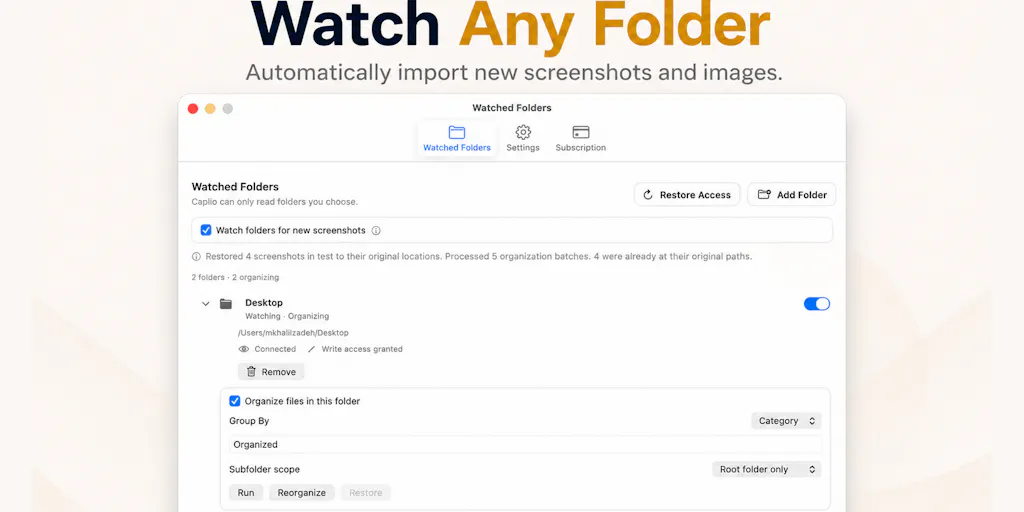
The maker of Caplio, R Aghababa, describes building the tool because he was “taking screenshots and saving reference images all the time, but rarely had a good way to find them again when I actually needed them.” That’s the exact pain I’ve hit repeatedly. The tool’s core pitch is simple: point it at the folders you already use, let it understand the text inside images via on-device OCR, and make everything searchable, browsable, and reusable.
Here’s why this matters beyond personal convenience. In the creator economy, speed of iteration is a competitive advantage. When a trend breaks on TikTok, the window to publish your take is measured in hours, not days. If you can’t find the reference material you need to act quickly, you miss the window. The difference between a creator who can pull up a competitor’s winning hook structure in seconds and one who spends 20 minutes scrolling through a screenshot folder is the difference between publishing while the trend is hot and publishing after it’s cooled.
The OCR angle is the critical piece. Most screenshot management tools treat images as opaque files — you can sort them by date or filename, but you can’t search inside them. Caplio’s approach, using on-device OCR to extract text and make it searchable, turns your screenshot library into a text-searchable database. This is the kind of feature that seems obvious in retrospect but is genuinely hard to execute well. When I’ve tested similar tools in the past — and I’ve tried several Mac utilities for this exact purpose — the OCR quality has been the make-or-break factor. Garbage OCR means you’re searching for text that was extracted incorrectly, which is arguably worse than not searching at all.
The visual timeline and date/category filtering are also more useful than they sound. For content operators, the ability to filter by date is a workflow superpower. I often want to answer questions like “What did this brand’s Instagram grid look like in Q3 of last year?” or “What hooks were working for competitors in January?” A visual timeline makes that kind of retrospective analysis possible without manually scrolling through months of screenshots.
How Caplio Differs From the Incumbents
To understand where Caplio fits, you have to look at the existing landscape of screenshot and reference management tools. The most obvious comparison is CleanShot X, which is beloved by Mac users for its capture and annotation features. But CleanShot is primarily a capture tool — it helps you take and annotate screenshots, not organize and search them retroactively. The same goes for Skitch, which is great for quick annotations but useless as a reference library.
On the organization side, you have tools like Eagle, which is a powerful design asset manager with tagging and folder systems. Eagle is excellent for designers who actively curate their libraries, but it requires manual effort — you have to tag, categorize, and organize as you go. The friction of that manual process is exactly why most people abandon their organization systems within a few weeks. Caplio’s bet is that automatic OCR and searchable text eliminates the need for manual curation. You don’t have to tag anything; you just search for the text you remember was in the image.
Then there are the note-taking apps that try to do similar things. Notion and Obsidian both allow you to embed images and search text, but they’re not designed for visual reference management at scale. You have to actively file screenshots into notes, which again introduces the manual curation problem. And Apple’s built-in Photos app has surprisingly good OCR search now, but it’s designed for personal photos, not workflow reference material — and it’s notoriously bad at handling the high volume of screenshots that content professionals accumulate.
Where Caplio differentiates itself is the combination of automatic OCR, visual timeline, and drag-and-drop output. The drag-and-drop feature is one I’d bet is underrated by most people reading the Product Hunt page. When I’m building a content calendar in Notion or a design in Canva, being able to drag a reference image directly from the library into the destination app eliminates the intermediate step of saving to desktop, finding the file, and uploading. It’s a small friction reduction, but in a workflow where you’re pulling 20-30 references per content sprint, small frictions compound into significant time savings.
The privacy angle is also worth taking seriously. Caplio’s OCR and indexing happen locally on your Mac, with the maker noting that “your images and extracted text aren’t uploaded for processing.” In an era where content professionals are increasingly wary of feeding their research and reference material into cloud-based AI tools — especially when that material includes competitor screenshots and proprietary strategy notes — on-device processing is a meaningful trust signal. I’ve seen creators get burned by tools that quietly use uploaded content for training or analysis, and the “local-first” approach is a differentiator that matters more than most people realize.
Why TikTok Creators Should Care More Than LinkedIn Ones
The value proposition of a screenshot library isn’t uniform across platforms. TikTok creators have a fundamentally different relationship with reference material than LinkedIn writers. On TikTok, visual references are everything — you’re constantly screenshotting hooks, transitions, text overlays, and editing styles from other creators. The text in those screenshots is often minimal, but the visual information is dense. Caplio’s OCR helps you find a screenshot by the text it contains, but for TikTok creators, the more valuable search would be by visual similarity or color palette — a feature that’s not mentioned in the launch page.
LinkedIn creators, by contrast, deal with text-heavy screenshots. I regularly screenshot long-form posts, carousel text, and comment sections that contain substantial written content. For that use case, OCR-based search is transformative. I can search for a phrase I remember from a post I screenshotted three months ago and find it instantly. That’s a workflow that would save me hours of scrolling every week.
The implication is that Caplio’s current feature set is better suited to text-heavy reference material than visual-heavy material. If you’re a TikTok creator who screenshots primarily for visual inspiration, you’ll get some utility from OCR, but you’ll miss the kind of visual search that tools like Pinterest have popularized. If you’re a LinkedIn or X writer who screenshots text, Caplio is closer to a must-have.
What Creators and Social Media Teams Can Borrow From Caplio’s Approach
Even if you don’t adopt Caplio, there’s a lesson in its design philosophy that every content operator should internalize: your reference library is an asset, not an afterthought. Most of us treat screenshots as ephemeral — we take them, use them once, and forget them. But a well-organized reference library is a compounding asset. Every screenshot you save is a potential input for future content, and if you can’t find it, it’s worthless.
The first thing I’d borrow is the “point it at existing folders” approach. Most organization tools fail because they require you to change your workflow — you have to remember to file things in a new location, tag them, or categorize them. Caplio’s bet is that you shouldn’t have to change anything; the tool should adapt to where you already save things. That’s a principle worth applying more broadly. When I’ve tried to implement elaborate tagging systems in Notion or Airtable, they always collapse within a few weeks because the friction is too high. Tools that work with your existing habits, not against them, are the ones that stick.
The second thing I’d borrow is the emphasis on reuse. The drag-and-drop feature — where you can pull an image from Caplio directly into another Mac app — is a reminder that reference material is only valuable when it can flow into your actual work product. I’ve seen creators build elaborate reference libraries in tools that are completely disconnected from their design and publishing workflow, and those libraries die from neglect. The tool that makes it trivially easy to move reference material into your active work is the tool you’ll actually use.
The third thing I’d borrow is the local-first privacy stance. Even if you’re not paranoid about data privacy, the on-device processing approach has a practical benefit: it’s faster and more reliable than cloud-based OCR. When I’ve used cloud-based OCR tools, I’ve had to wait for uploads and processing, and I’ve hit rate limits on high-volume days. Local processing eliminates those bottlenecks. For a tool that’s meant to be used throughout the day as you’re collecting reference material, speed and reliability are non-negotiable.
Where the Math Breaks: The Limitations Nobody’s Talking About
Let me be clear about where Caplio’s current feature set doesn’t fully deliver. The Product Hunt page mentions “duplicate detection” as a desired feature in the comments — one user, Gal Dayan, notes that they “retake the same screenshot two or three times when I’m trying to get the crop right” and wants a tool that “flags near-identical screenshots taken a few seconds apart and offers to merge or delete.” That’s a real gap. My own screenshot folder is full of near-duplicates — I take multiple versions of the same capture to get the crop right, and they pile up. Without deduplication, the library eventually becomes as messy as the folder it’s meant to replace.
The OCR quality for non-English text is also an open question. One commenter, Lisa, asks whether the on-device OCR “handle[s] non-English text too.” The maker’s response is not visible in the source, so this is an unresolved question. For creators who work with international content — which is most serious operators in 2025 — multilingual OCR is essential. If Caplio’s OCR is English-only, that’s a significant limitation for a large segment of the target audience.
There’s also the question of scale. The launch page doesn’t disclose how many images Caplio can handle before performance degrades. A content operator who’s been taking screenshots for years could have tens of thousands of images. If the OCR indexing process slows down meaningfully at that scale, the tool becomes less useful over time — the opposite of what you want from a reference library. This is something I’d want to test before committing to the tool.
And finally, the platform limitation. Caplio is Mac-only, which is fine for a certain segment of creators, but the broader content operations world is increasingly cross-platform — many teams mix Mac and Windows machines, and some creators do their best work on Windows or Linux. A Mac-only tool is a non-starter for those teams, regardless of how good the features are.
Who Caplio Is NOT For
Let me be direct about who should skip Caplio, at least in its current form. If you’re a Windows user, this is not your tool — not disclosed in the source whether a Windows version is planned, so assume it isn’t. If you’re a designer who works primarily with visual inspiration rather than text-based reference material, you’ll get limited value from OCR-based search; you’d be better served by a tool like Eagle that emphasizes visual curation and tagging.
If you’re someone who already has a disciplined organization system — you tag everything in Notion or Eagle and you actually stick with it — Caplio’s automatic approach might feel redundant. The tool’s value proposition is strongest for people who have a chaotic screenshot folder and no system for fixing it. If you’ve already built a system that works, switching to Caplio would be a lateral move at best.
And if you’re a team that needs shared access to a reference library, Caplio is not designed for that. It’s a personal tool, not a collaborative one. Teams would be better served by a shared tool like Dropbox or Google Drive with organized folders, or a dedicated asset management platform.
My Judgment: Where Caplio Excels and Where It Needs Work
My take, based on the launch page and my experience with similar tools: Caplio is solving a real problem with a sensible approach, but it’s at the beginning of its journey. The on-device OCR and visual timeline are genuinely useful features that address the core pain of unsearchable screenshot folders. The drag-and-drop output is a thoughtful touch that respects how creators actually work. The privacy stance is a meaningful differentiator in an era of cloud-everything.
But there are gaps. The lack of deduplication is a significant miss — it’s one of the most requested features in the comments, and it’s a real pain point for anyone who’s been using screenshots for a while. The multilingual OCR question is unresolved, which limits the tool’s utility for international content work. And the Mac-only limitation means it’s not viable for mixed-platform teams.
I’d also note that the maker’s framing — “point it at the folders I already use” — is clever but has limits. If your screenshot folder is a mess of 5,000 images, Caplio will index them and make them searchable, but it won’t help you curate them. The tool is a search layer, not a curation layer. For creators who need to actively organize their reference material — not just find it — Caplio’s approach might feel insufficient.
That said, I’d bet the core use case is strong enough to justify the tool for a significant segment of creators. If you’re a text-heavy content operator — a LinkedIn writer, an X poster, a newsletter author — who takes screenshots of posts, articles, and comments for reference, Caplio could save you hours of searching every week. That’s not a trivial win.
What I’d Watch / Test Next
If I were evaluating Caplio for my own workflow, here’s what I’d do this week:
First, I’d test the OCR quality against my actual reference material. I’d import a sample of 100 screenshots — a mix of English and non-English text, clean and noisy images — and run searches for phrases I know are in the images. If the OCR fails on non-English text, that’s a dealbreaker for my workflow, which involves a lot of international content.
Second, I’d stress-test the scale question. I’d import my full screenshot folder — which is in the thousands at this point — and see how the tool performs. Does indexing slow down? Does search return results quickly? Does the timeline remain usable? If the tool degrades at scale, it’s not a long-term solution.
Third, I’d test the drag-and-drop integration with my actual workflow. I’d use Caplio to find a reference image and drag it into Canva, Notion, and Slack to see if the integration is as seamless as promised. If the drag-and-drop works reliably, it’s a significant workflow win.
Fourth, I’d watch for a deduplication feature. The comment from Gal Dayan about near-identical screenshots is exactly the pain I feel, and if the maker ships deduplication in the next few months, that would move Caplio from “useful” to “essential” for me.
And finally, I’d check back on the roadmap. The maker says they’re “actively working on improving it,” and the questions they’re asking — about how people manage screenshots, what would make the tool more useful, and what feels confusing — are the right questions. The product is at the beginning, and the direction it takes in the next few months will determine whether it becomes a staple of the creator toolset or a niche utility.
For now, Caplio is worth a look if you’re a Mac-based creator drowning in screenshots. It’s not a complete solution, but it’s a thoughtful start to a problem that most tools ignore. And in a content landscape where speed and reference quality matter more than ever, that’s a bet worth watching.