How to Use FlowNib to Create Once and Automatically Adapt to 10 Major Overseas Social Media Platforms: A Step‑by‑Step Tutorial

As a cross‑border operator, I have to rewrite the same product copy on Instagram, X, and LinkedIn every day until my fingers go numb. After trying FlowNib last week, the whole process collapsed into “write once, AI automatically adapts, one‑click publish.” In this article I will demonstrate every step from registration to seeing the post go live, helping you eliminate the time spent on repetitive copy‑pasting.
The real cost of manual cross‑platform publishing is more than just a few extra minutes. Consider X’s 280‑character limit—officially each tweet can contain up to 280 English characters, while Instagram’s caption limit is 2,200 characters, Threads leans toward lightweight conversational style, and LinkedIn requires a more formal, professional tone. For the same content you need at least four versions, all while keeping the core message consistent. Most cross‑border operators’ bottleneck isn’t creativity but “搬translating” the copy. The value of AI automatic adaptation lies in preserving core brand information (price, call‑to‑action, product selling points) while automatically adjusting format and tone, making the same copy lively on Instagram, formal on LinkedIn, and concise on X.
Register FlowNib and Connect Your Social Media Accounts (2 Minutes)
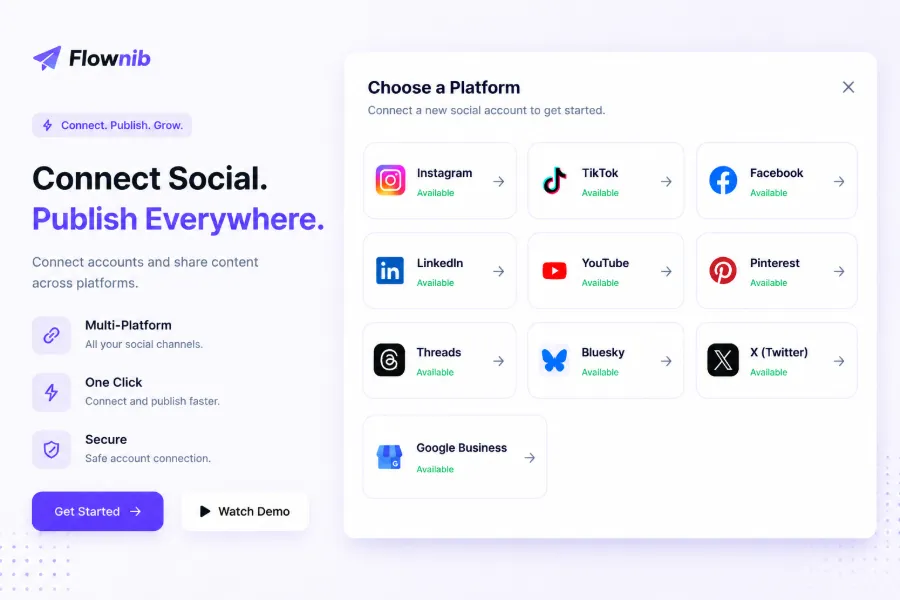
The registration process for FlowNib was faster than I expected. Click “Start Free” on the homepage, fill in email and password—no credit card, no countdown timer for a trial period. After entering the basic info you’re taken straight to the dashboard; the left sidebar is the platform‑connection hub. My first connection was Instagram via the official API: click the Instagram icon, a popup redirects to the Instagram login page, confirm authorization, and you’re automatically returned to the FlowNib dashboard—about 40 seconds total. The same platform can have multiple accounts, e.g., a brand account and a personal account, selectable when publishing. The average setup time is indeed two minutes, and the free plan supports three social accounts—if you’re just starting cross‑border work, connect Instagram, X, and LinkedIn for testing. For a detailed comparison of plans, see this FlowNib Pricing and Feature Full Analysis: A Must‑Read for Cross‑Border Newbies.
Write a Post, Let AI Rewrite and Preview
In the “Compose” screen there are two options: write the original copy yourself or let AI generate it. I pasted a product promotion I had prepared last week: “Summer sale starts now! Up to 50% off on select items. Use code SUMMER50 at checkout. Limited time offer.” Then I clicked “AI Optimize.” After about three to four seconds—indeed within the expected 3‑5 seconds—the right side displayed rewritten versions for each platform.
Interesting part: AI kept “50% off” and the coupon code, but each version’s tone was completely different. The Instagram version added emojis and short‑line breaks; the LinkedIn version dropped emojis and used a more formal “exclusive offer”; the X version was heavily compressed to fit the 280‑character limit; the Threads version read like a friend’s recommendation. The preview feature is very useful—click any post to see the full result and manually fine‑tune if needed. My first time I noticed AI placed a link in the middle of the Instagram caption, but Instagram only allows links in the bio or story, so I had to delete it manually. I now always check the preview. Compared with traditional tools like Loomly: Social Media Management Platform, which require editing each platform’s version separately and then scheduling, FlowNib’s “write once, AI adapt” truly eliminates the copy‑and‑paste steps. The second mention of the product name is here: FlowNib’s AI rewrite isn’t just a truncation; it truly adjusts according to each platform’s linguistic conventions.
Schedule Publishing and One‑Click Distribution
Don’t rush to publish after rewriting. I find FlowNib’s smart scheduling more valuable than manual scheduling. AI analyzes each account’s historical engagement data—e.g., your Instagram followers are most active on the East Coast between 8‑10 PM, X followers at noon 12‑2 PM—and then recommends the optimal posting time for each account. Internal tests claim a 20‑30 % boost in engagement; after two weeks I saw Instagram likes increase, while X retweets stayed roughly the same, likely because content virality varies. The scheduling UI lets you choose “AI‑Recommended Time,” “Custom Time,” or click “Publish” to post immediately.
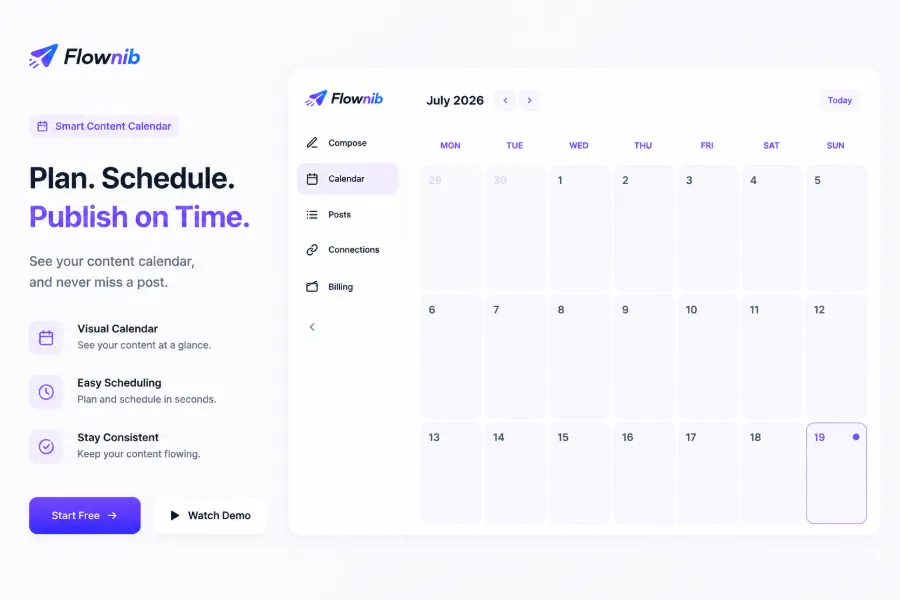
Key step: check all connected accounts (you can select a subset, e.g., only Instagram and X, not LinkedIn), confirm, then click Publish. One click pushes to all selected platforms—no need to switch back and forth between Instagram, X, and LinkedIn. After publishing you can view all published and scheduled posts in the content calendar—its visual layout makes it easy to spot which platforms lack content on any given day. For people managing multiple brand accounts, this calendar is far more convenient than an Excel sheet. When discussing smart scheduling, also check this FlowNib vs Later vs Sprout Social Comparison: Which AI Cross‑Platform Adaptation Is More Convenient? for a detailed breakdown of the three tools’ scheduling logic differences.
Daily Management Tips and Common Mistakes to Avoid
After a week I realized multi‑account management is the underrated feature. I handle both a company brand account and a personal account; previously I had to switch between two browser windows. Now I can switch account groups directly in the FlowNib dashboard, each group with its own brand tone. For a stability comparison with traditional tools, see FlowNib vs Buffer vs Hootsuite: 2026 Global Brand AI Scheduling Tools Comparison Review.
A pitfall I fell into: AI sometimes omits special characters or truncates links. Once I didn’t notice in the preview and published the edited content, resulting in a half‑cut Instagram link that led to a 404 page. That day’s traffic dropped by several hundred clicks because the promotional link was invalid, and conversions went to zero. Since then I always preview every post, especially those with links or special symbols.
Another tip: set a fixed template. For example, always end the copy with “Product price + short description.” AI will recognize and preserve that part during rewrite, preventing loss of key information during tone adjustments. Cross‑border ops also face a subtle pain point: emoji acceptance varies by market. Western users generally accept emojis as decoration, Japanese users prefer kaomoji, and Southeast Asian users use emojis more frequently. FlowNib’s AI can automatically control emoji density—LinkedIn versions automatically reduce emojis, Instagram versions retain them appropriately. I tried manually controlling this before; AI’s judgment is far more accurate. The official uptime is 99.99 %; I haven’t encountered any failures due to platform outages. Traditional tools like Hootsuite: Social Media Marketing and Management Tool handle character limits more roughly, often requiring manual adjustments that still don’t match.
Frequently Asked Questions (FAQ)
Q1: Which platforms does FlowNib support?
Currently it supports ten platforms: Instagram, X (Twitter), LinkedIn, TikTok, Facebook, Threads, Pinterest, YouTube, Bluesky, and Google Business. All are connected via official APIs with a single authorization per platform.
Q2: Will AI rewriting change my brand voice?
It won’t completely change it. AI identifies brand keywords and core information (price, coupon code, CTA) in your input copy, preserving them while adjusting sentence structure and tone. If you need finer control, you can manually fine‑tune each platform’s version in the “Compose” screen.
Q3: How many posts can I publish on the free plan?
The free plan supports three social accounts and six posts, with no credit card required. You can upgrade to a paid plan later.
Q4: Can I publish to only a subset of my accounts?
Yes. On the publishing page each connected account has a checkbox; select the platforms and accounts you want to publish to and click Publish. The other accounts remain unaffected.
Share Article