
One-Click Generation of UGC Videos from Product Screenshots: Automatic Parsing, Six Templates, Multi‑Duration Batch Output
Facing dozens of products every day, each requires a “grass‑planting” (promotional) video, but the time cost of shooting and editing is absurdly high. Now you only need a product screenshot or a product link, and the AI can automatically extract the title, selling points, price, and main image; even if parsing fails, a video can be generated directly from a template. In this article I will break down every step of this workflow, from input to output, to show how to batch‑produce highly realistic UGC content with minimal effort.
Product Screenshot or Link: How AI Automatically Extracts Title, Selling Points, and Price
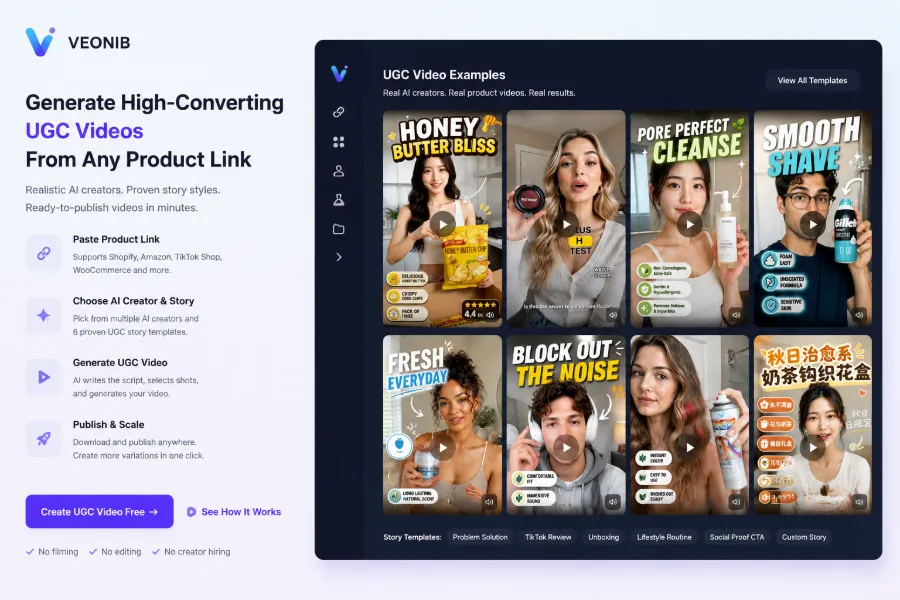
When I first tried this feature, I wasn’t sure—if I threw in a screenshot, could the AI really recognize what product it was? After a few attempts, I found the system does far more than just image recognition. You can choose one of two input methods: upload a product screenshot, or paste a product link directly. If you use a link, VEONIB (https://veonib.seonib.com) will automatically fetch the structured data from the product detail page, extracting the title, selling points, price, and main image, usually within a few seconds. Using a screenshot is more flexible—you can capture a competitor’s display image on social media, or photograph a product on a physical shelf, quickly testing visual effects of different assets.
One time I captured a blurry Taobao product image, and the system still correctly identified the keyword “wireless Bluetooth headphones” and matched it to a similar price range. After parsing, the video was generated in under 60 seconds. If you’re interested in the full workflow, check out the article on One‑Click Generation of UGC Videos – Detailed Process. The project’s technical implementation is also open source, with the code hosted in the VEONIB GitHub Repository.
Parsing Failures Are Not a Problem: Fault‑Tolerance Mechanism and Manual Completion
Parsing doesn’t always go smoothly. Once I uploaded a screenshot taken in extremely low light, and the system couldn’t recognize any product information. To my surprise, it didn’t just throw an error—it popped up a manual input box, allowing me to fill in the product title, selling points, and price. After entering these basic fields, the system automatically matched the most suitable template based on the product category I selected (beauty), adding only about 30 seconds to the process.
The core logic of this fault‑tolerance mechanism is: even if parsing fails, the system can still match a template based on the product category. You don’t need to re‑upload or change the link; just supplement a few key fields. If you’re unsure about the category, you can skip it and generate a video with the default template. For a detailed description of this feature, see the AI UGC Video Generator Feature Overview page. I’ve developed a habit of checking the parsing result right after uploading a screenshot; if the recognized information is off, I quickly edit it, which is much faster than finding a new screenshot.
Six UGC Story Templates: Matching Different Categories and Marketing Goals
The choice of template directly determines the video’s tone. The system includes six UGC story templates: Problem‑Solution, TikTok Review, Unboxing, Lifestyle, Social Proof, and Custom. Each template follows a different narrative logic—Problem‑Solution fits functional products like cleaning tools or tech accessories; TikTok Review mimics a real user’s review voice, suitable for beauty and apparel; Unboxing highlights the first impression, perfect for gift‑type products.
Each template supports three durations: 15 seconds, 20 seconds, and 30 seconds. My usual workflow is to pick a template, generate a 15‑second version to gauge the pacing, and switch to 20 seconds if the content feels rushed. The system automatically fills the product information into the appropriate spots in the template—title appears at the opening, selling points are distributed throughout the middle, and price shows up in the concluding call‑to‑action. VEONIB handles this kind of filling very reliably; even with long product information, there’s no text overflow or layout chaos. For a full case study, see the VEONIB case video for Jo Malone perfume. For content production strategy, the article on Content Multi‑Thread Production Strategy also offers many ideas.
Character Selection: Built‑In Virtual Avatars and Real‑Person Uploads
The “person” in the video is a key factor for realism. The system includes multiple built‑in virtual avatars covering different genders, ages, and styles. These avatars have pre‑set actions and lip‑sync that look natural rather than stiff. If you want stronger realism, you can upload a real‑person photo—the system will generate a corresponding virtual avatar, making the “person” in the video look more like an actual user.
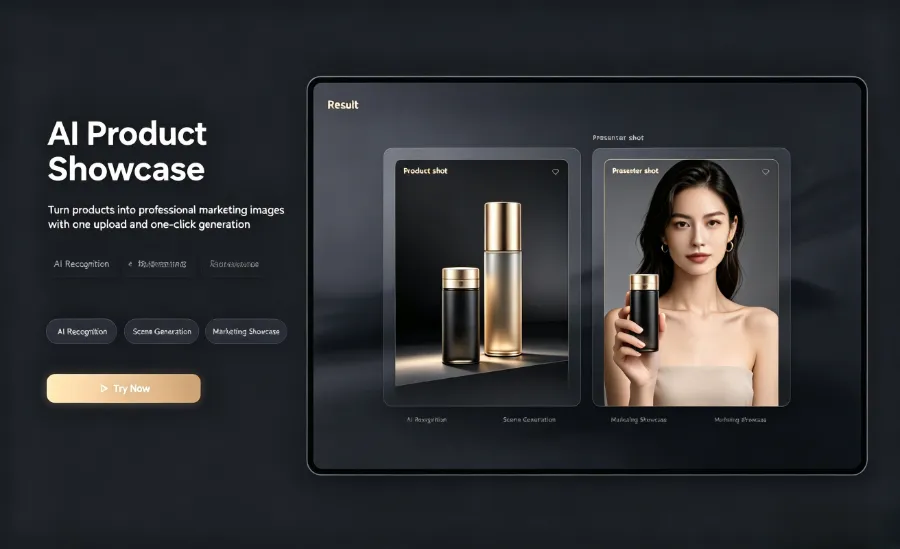
I’ve tried several comparisons between built‑in avatars and real‑person uploads. Built‑in avatars are convenient—just pick one and go—but their expression and motion variety is limited. After uploading a real photo, the video’s avatar closely resembles the photo, which helps the audience feel more trust. Note that the uploaded photo should be a frontal shot with even lighting and a simple background—the system extracts facial features more accurately that way. Once the avatar is selected, the system embeds it into the appropriate scene of the template, such as holding the product, speaking to the camera, or naturally appearing in a usage scenario.
FAQ
Q1: Which input method—product screenshot or product link—is more accurate?
Product links have a higher parsing accuracy because the system can directly fetch structured data from the product detail page. Screenshots rely on image recognition and are more affected by image quality, but they are flexible—you can capture product images from any source.
Q2: When parsing fails, which information can I manually edit?
You can manually fill in three fields: product title, selling points, and price. After completing these, the system matches a template based on the product category and continues generating the video.
Q3: Which types of products are each of the six templates best suited for?
Problem‑Solution: functional products; TikTok Review: beauty and apparel; Unboxing: gift‑type products; Lifestyle: home and food; Social Proof: high‑ticket items; Custom: products with specific storytelling needs.
Q4: Can the character avatar be customized? Is uploading my own photo supported?
Yes. The system includes multiple built‑in virtual avatars and also supports uploading a real photo to generate a custom avatar. It’s recommended to use a frontal photo with even lighting and a simple background.
Q5: Can the generated video length be adjusted?
Yes. Each template supports 15 seconds, 20 seconds, and 30 seconds. After generation, you can switch durations with one click, and the system automatically adjusts content pacing and copy density.
Share Article